Three weeks into the build, the client asked something that changed the scope. They’d been testing the text-to-SQL prototype and liked it. Then they said: “Can the tool just generate the board update for me? I don’t want a table I have to copy into slides. I want a PDF I can attach to an email.”
That question unlocked the part of this build I found most interesting. The SQL generation was the technically harder problem. The PDF pipeline was the operationally harder problem. This is the story of that second part.
If you want the SQL architecture (schema-aware prompting, validation layer, reasoning panel, accuracy numbers), the earlier build post covers it. This post picks up where that one stops.
What “Board-Ready” Actually Means
The finance team running this tool had a recurring problem. Every two weeks, they needed to prepare an update for the board: revenue by region, expense categories, budget versus actual, vendor spend. They had the data. They had the SQL skills to pull it. The gap was the presentation layer.
Their existing process: write the queries, export the results to a spreadsheet, build charts in Google Sheets, paste the charts into Slides, write a paragraph of context for each chart, export the deck. About 4 hours, every two weeks.
What they wanted: type “show me revenue by region for last quarter, compared to the quarter before” and get a PDF with the chart and the context already written.
“Board-ready” in practice means three things. A chart that makes the answer visible at a glance. A plain-English sentence or two explaining what the chart shows. A PDF format that can be emailed directly without any post-processing. No tables of raw numbers, no SQL output, nothing that requires the recipient to do further work to understand it.
The Pipeline: After SQL, Before the Board Meeting
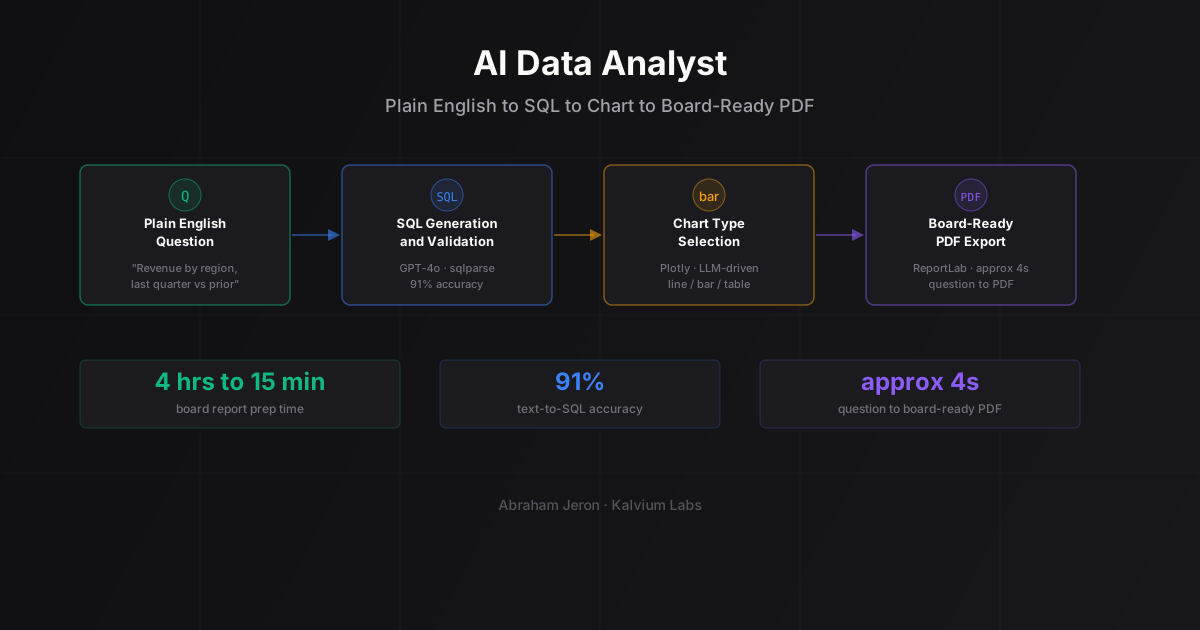
Our text-to-SQL layer handles the question to SQL to result step. It runs the validated query against a read-only PostgreSQL replica and returns a structured result set. That result set is the input to the board-ready pipeline.
From there, we added three stages:
Chart type selection. We pass the query, the column names, and the first few rows of the result to GPT-4o with a prompt that asks it to classify the chart type. The options are: line chart (for time-series data), bar chart (for category comparison), and simple table (for multi-column results where a chart would add confusion rather than clarity). The model reasons about the result shape, not the question text.
Chart rendering. We use Plotly to generate the chart as a static PNG. All charts follow a fixed color palette and font that matches the client’s brand. The chart gets saved to a temporary file before it enters the PDF stage.
PDF compilation. We use ReportLab to assemble the PDF: the question as a title, the chart image, a two to three sentence plain-English insight generated by a second LLM call, and a footer with the query timestamp. The SQL itself does not appear in the PDF. It’s available in the reasoning panel in the UI if you want to check it, but the export hides it intentionally.
Total pipeline time for the PDF stage, on top of the SQL step: about 1.8 seconds. The full round-trip from question to downloadable PDF is around 4 seconds.
Chart Type Selection: Where We Got It Wrong
The first version was embarrassing. We deployed it, ran a few test queries, and everything looked plausible. Then during the client demo, the first chart they generated was a pie chart showing quarterly revenue over eight quarters.
Eight slices, all similar sizes, labeled Q1 2023 through Q4 2024. The LLM had decided that revenue-by-quarter was a proportional comparison and called a pie chart. It’s technically not wrong. It’s also completely useless for seeing a trend.
The fix was to add explicit rules before the LLM reasoning step. If the result set has a date or timestamp column, the default is a line chart, regardless of what the LLM suggests. If the result is two columns (a category and a number), it’s a bar chart. The LLM only gets to classify “table vs chart” and break the bar/line tie when the rules don’t apply clearly.
We also added a minimum-row threshold. Results with fewer than three rows default to a table, because a bar chart with two bars reads as a comparison when it might just be incomplete data. The client found that edge case within two hours of getting access.
The PDF Layer: From Raw Data to Something You Can Email
The PDF design went through three versions before it stopped feeling like a technical document.
Version 1: full SQL in the header, raw table below, chart on the second page. The client looked at it and said it still felt like something their analyst had generated. The SQL was intimidating to non-technical board members.
Version 2: removed the SQL, kept the table next to the chart. Better. The finance lead’s feedback: “board members don’t read tables during a board meeting.” We moved the table to a collapsible appendix in the UI and removed it from the PDF entirely.
Version 3 (what ships now): question as the title, chart taking up two-thirds of the page, three-sentence insight below it, footer with the query timestamp. One page, no raw data, no SQL. If the result has more than one chart (some queries produce two or three related breakdowns), they stack vertically with a section break between them.
ReportLab gave us enough layout control without fighting the rendering engine. We considered WeasyPrint with an HTML template, which would have been easier to style but slower and harder to orchestrate in the same Python process. For this use case, ReportLab was the right call. The generated PDFs are 200 to 400KB, load instantly, and render correctly on both desktop and mobile.
The Reasoning Summary: The Part That Surprised Us
The two to three sentence insight is generated by a second GPT-4o call after the chart is rendered. The prompt includes the query, the chart type, and the top three to five data points extracted from the result set. The model writes a plain-English paragraph: what the number is, whether it’s up or down relative to the context in the query, and one flag if the data shows something unusual.
We didn’t think this would matter as much as it did. Early testing showed that users would look at the chart, form their own interpretation, and then check the insight text. When the text matched their interpretation, confidence went up. When it flagged something they’d missed (an outlier, a quarter-over-quarter reversal buried in the trend line), they found it genuinely useful.
One thing we still don’t have a good answer for: the insight text sometimes states the obvious. “Revenue was higher in Q3 than Q2” when the chart already shows that clearly. We added a prompt instruction to not narrate what is visually obvious from the chart. It helped about 60% of the time. The other 40%, the model still narrates instead of interprets. Still working on that.
What It Looks Like in Production
The client’s finance team now runs their board prep on Friday mornings. They type their standard questions into the UI, hit export, and get a single PDF with all the charts and insights. That session takes about 10 to 15 minutes. The previous process was 4 hours on a good week.
The SQL Data Analyst case study has the full accuracy and latency numbers from the SQL architecture layer if you want to dig into that side.
One thing the demo doesn’t show: the brand customization layer. For production deployments, we wire in the client’s logo, color palette, and font so the PDF looks like it came from their team, not from an AI tool. That takes about a day to configure.
FAQ
What does “board-ready” mean in practice?
It means the output is a PDF you can attach to an email without any post-processing. It has a chart, a plain-English explanation of what the chart shows, and no raw SQL or data tables that a non-technical reader would need to interpret. The goal is that a board member can read the output without needing to ask a follow-up question.
What databases does this work with?
The core pipeline runs against PostgreSQL, but the architecture is database-agnostic at the query execution layer. We’ve also run it against BigQuery and MySQL with minor adapter changes. The SQL generation layer is tuned to the target schema, so any migration requires revalidating the schema-aware prompts. Figure about two to three days for a new database.
How long does it take to build something like this?
The text-to-SQL layer took about three weeks for a schema with 12 tables and a 50-question benchmark. The board-ready PDF layer on top of that was another 10 days of build and testing. Total: roughly four to five weeks for a production-ready version with brand customization. A lot of that time is prompt tuning and testing edge cases in the chart selection logic.
What’s the operating cost at scale?
The main cost is GPT-4o API calls. We make two calls per query (one for SQL generation, one for the insight text) plus the chart classification call. At roughly $0.01 per 1K tokens, a typical query with a medium-complexity schema runs about $0.03 to $0.05. For a team running 200 queries per month, that’s under $10 in model costs. PDF rendering and chart generation are compute-only, no API cost.
Can the output style be customized?
Yes. The PDF template (layout, fonts, colors, logo, header, footer) is configurable per deployment. The insight text tone (formal versus conversational, detail level) is adjustable via the summary prompt. Most clients run with a slightly more formal tone than the default for board-facing output.
If your team is spending hours on data prep for board updates, this is the problem we built this tool to solve. Book a 30-minute call and we’ll tell you if the same approach works for your data schema.